

HELP
Help and answers.
Getting started, the three provider types, and fixes for the problems people actually hit. Can't find it? Contact support.
Getting started
- 1Get your login from your provider. Server address, username and password — or a playlist link, or a portal address.
- 2Install OVVOS TV from Google Play. On Android TV, Google TV, phone or tablet, Android 9 or newer.
- 3Sign in and pick your categories. Full walkthrough: How to log in with Xtream Codes.
The three provider types
Xtream Codes
You enter a server address, username and password. Gives the richest library, with categories, posters and the programme guide.
M3U / M3U8
You paste one playlist link. Works the same way once loaded; detail depends on what the playlist includes.
Stalker / Ministra
You enter a portal address and the device MAC address your provider registered.
Common problems
A stream won't play
Usually your provider's connection limit has been reached on another device, or your line has expired. The app shows the reason and a Try again button.
"Unable to parse TLS packet header"
The server address uses https:// on a plain port such as 8080. OVVOS TV now corrects this itself; if it persists, change https:// to http://.
New films from my provider are missing
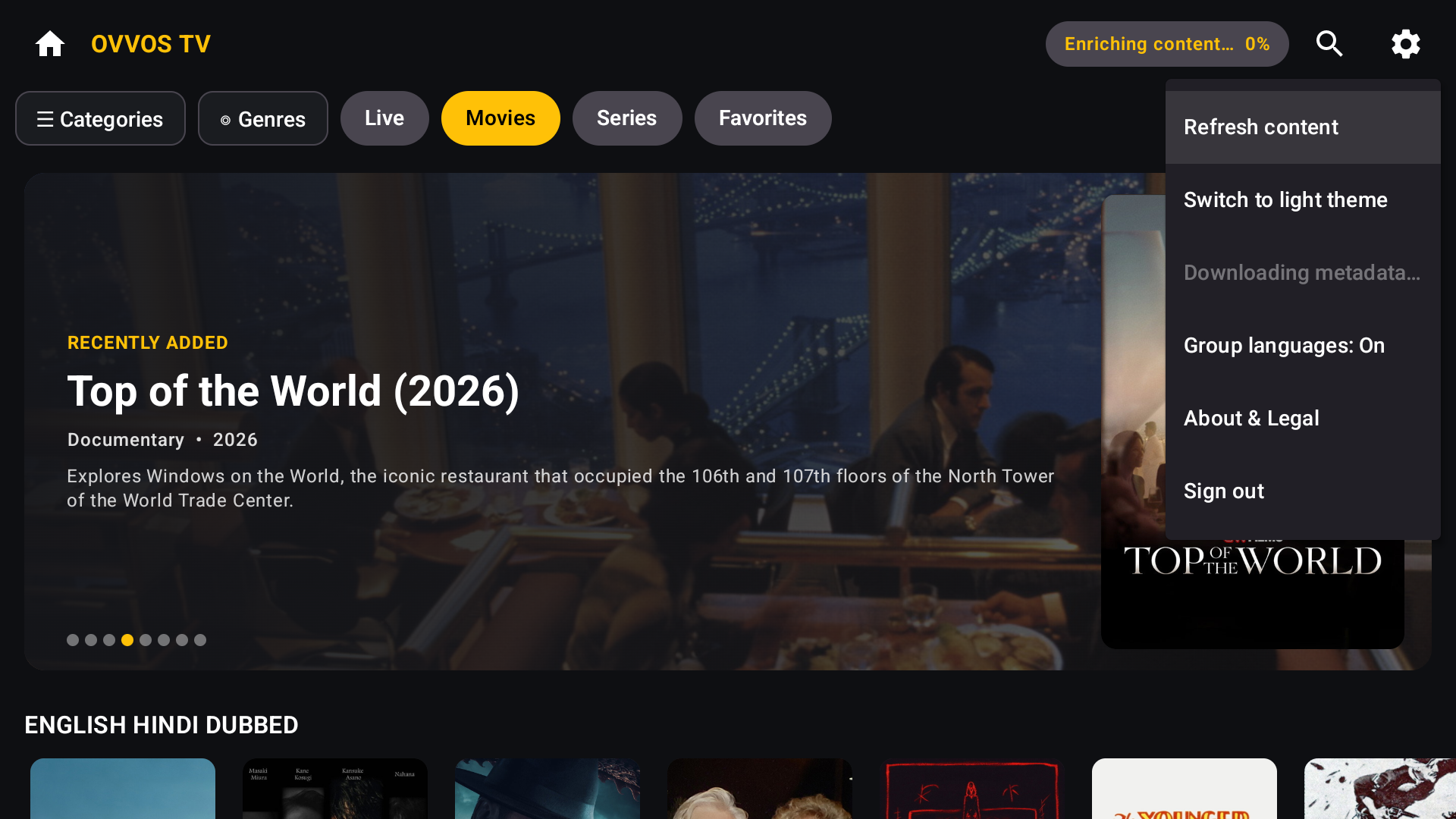
The library refreshes in the background every six hours. To refresh now, open Settings → Refresh content.
A series shows no episodes
Some providers return an empty list the first time. OVVOS TV retries; open the series again after a moment.
Details like plot and cast are missing
Details fill in gradually after you opt in, one request every two seconds. Check progress in Settings.
Settings and how-tos
Refresh your library
Settings → Refresh content. A small chip shows progress while you keep browsing.
Turn language grouping off
Settings → Group languages: Off. You'll see your provider's raw list, one card per language version.
Change your categories
Open the Categories chip on Movies or Series and pin or unpin with the star.
Switch to the light theme
Settings → Switch to light theme.
Use more than one provider
Sign in to another provider on the same device. Each keeps its own favourites, history and pinned categories.
Frequently asked questions
Does OVVOS TV include channels or movies?
No. OVVOS TV is a player. It plays the service you already subscribe to with your own provider.
Which providers work?
Any provider that gives you Xtream Codes login details, an M3U or M3U8 playlist link, or a Stalker / Ministra portal.
Is there a free trial?
Yes. 15 days, with no card and no sign-up. It starts the first time you open the app.
What does it cost after the trial?
On Android, $19.99 a year through Google Play. You can cancel any time in Google Play.
Which devices can I use?
Android TV and Google TV boxes, Android phones and tablets (Android 9 or newer). Windows, iPhone, iPad and Apple TV are coming soon.
Does one subscription cover my phone and my TV?
Yes, on Android. One Google Play subscription covers every Android phone, tablet and TV signed in to the same Google account. Windows and Apple devices are purchased through their own stores.
Why do I see one card for a film my provider lists in several languages?
OVVOS TV groups the language versions of the same title. Open it and pick your language on its page. You can turn grouping off in Settings.
Why won't a stream play?
Usually your provider's connection limit has been reached, or your line has expired. The app shows the reason and a Try again button.
Is my login private?
Yes. Your server address, username, password, history and favourites stay on your device. OVVOS TV never receives them.
Can I use it on Samsung, LG, Hisense or Roku TVs?
Only if the TV runs Android TV or Google TV. TVs running Tizen, webOS, VIDAA or Roku OS are not supported.
Still need help?
Write to us with your Trial ID from Settings → About & Legal → Support.