

SETUP GUIDE · 3 MINUTES
How to add an M3U playlist.
To add an M3U playlist to OVVOS TV, choose M3U Playlist on the first screen and paste the playlist link your IPTV provider gave you. OVVOS TV then downloads your library and asks which categories you want.
What you need
One link from your provider, usually sent by email or message when you subscribed. OVVOS TV does not supply it.
- Playlist link
- http://your-provider.com/playlist.m3u8
- Or
- http://your-provider.com:8080/get.php?username=…&password=…&type=m3u_plus
Both .m3u and .m3u8 links work. Your link is stored only on your device.
Step by step
-
1
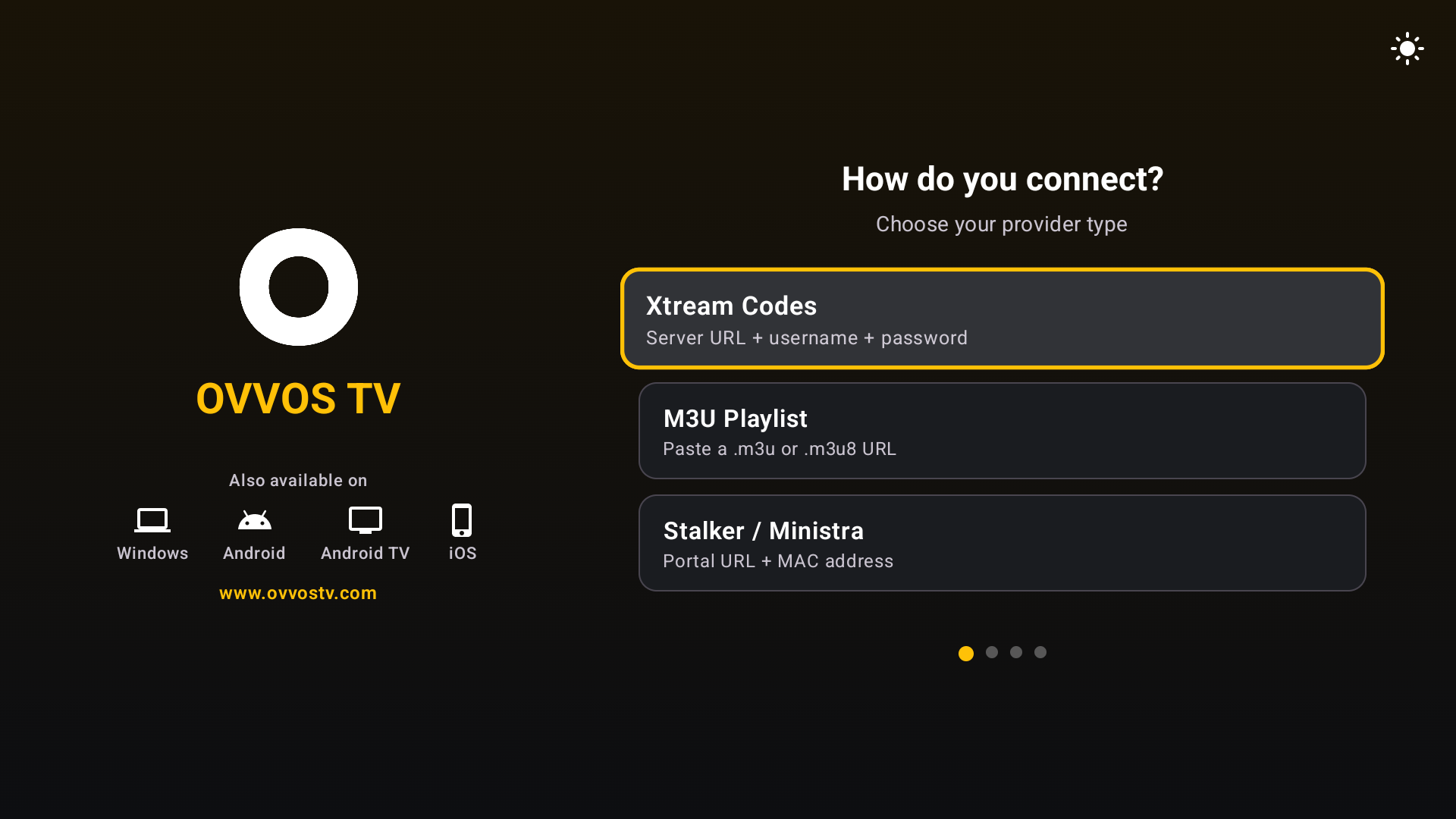
Choose M3U Playlist
After accepting the player notice, pick M3U Playlist on "How do you connect?".
-
2
Paste the playlist link
Paste the full link exactly as your provider sent it, including everything after the question mark. Copying is safer than typing.
-
3
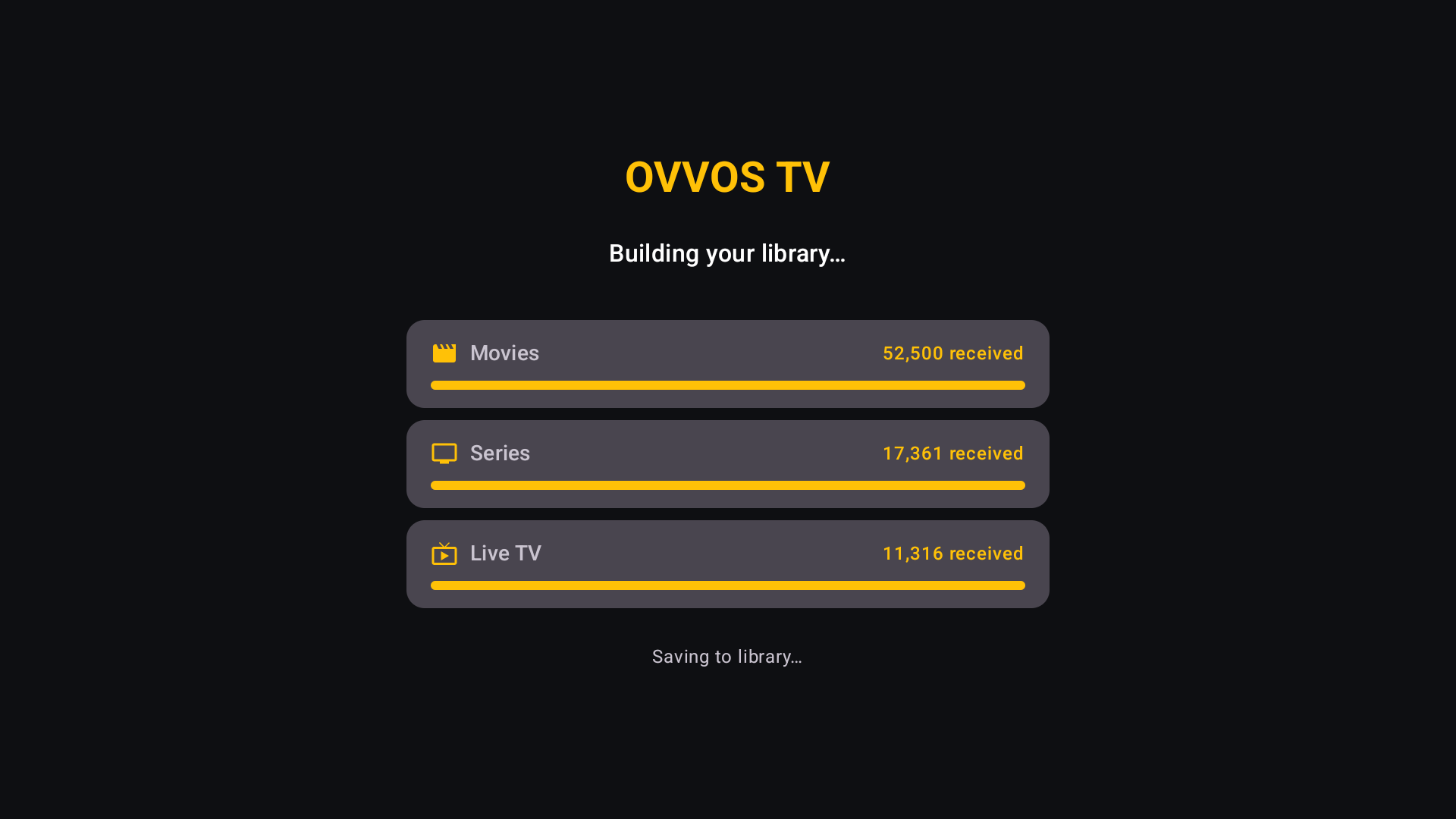
Wait while your library builds
Movies, series and live channels download with progress bars. Usually a minute or two.
-
4
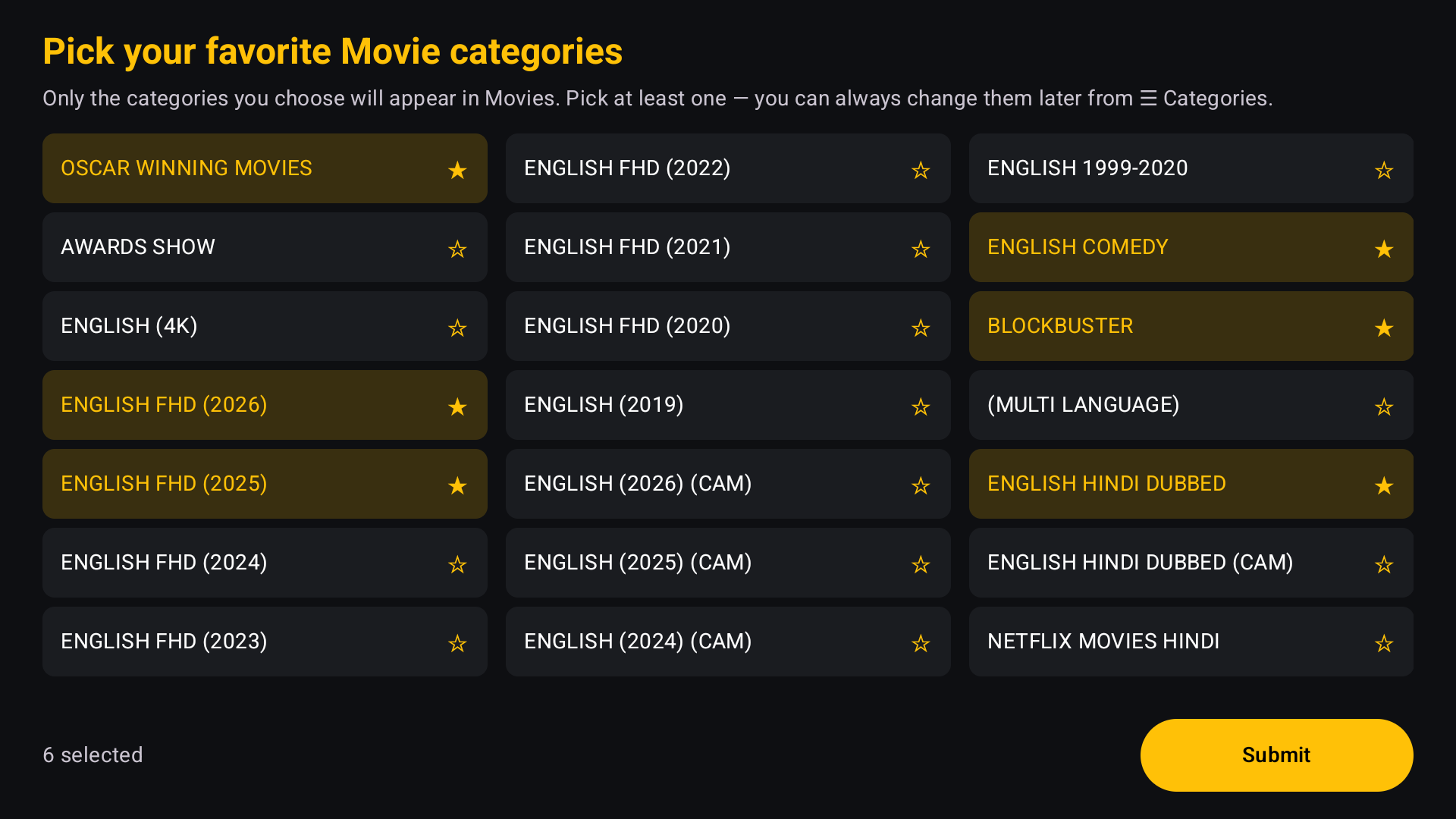
Pick your categories
Choose the movie and then series categories you want. You can change them later.
M3U or Xtream Codes?
If your link contains username= and password=, the same details also work as Xtream Codes, which usually gives a richer library with categories, posters and the TV guide. How to log in with Xtream Codes.
If sign-in fails
The playlist won't load
Check the link is complete and has no spaces. Open it in a browser: if it doesn't download a file there, ask your provider for a new link.
Live channels load, but no movies or series
Some playlists contain only live channels. OVVOS TV shows what the playlist includes; ask your provider for Xtream Codes details to get movies and series.
The line has expired
Your provider subscription has ended. Renew it with your provider; OVVOS TV cannot extend it.
Signed in, but a stream won't play
Usually your provider's connection limit has been reached on another device. The app shows the reason and a Try again button.
Still stuck? Email support@ovvostv.com with your Trial ID from Settings → About & Legal.